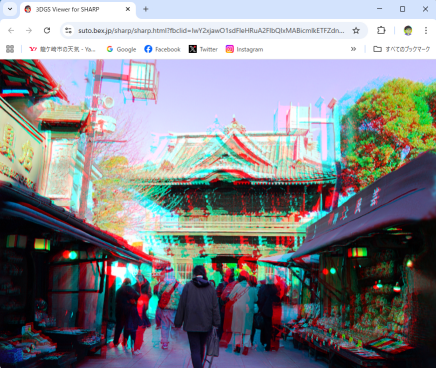
3DGS Viewer for SHARP
How to Use the Viewer
Drag and drop a 3D Gaussian Splatting (.PLY) file generated by “SHARP” onto the Viewer to display it in 3D.
・Mouse drag : Rotate the model freely
・Shift key + mouse drag : Translate (pan) the model
・Mouse wheel : Zoom in/out (technically adjusts the FOV)
S key : Change 3D display mode
(SBS → LR / RL → Dubois Anaglyph → Color Anaglyph → Anaglyph → Interlaced → Half SBS → repeat)
X key : Swap left and right views
Left / Right arrow keys : Adjust stereo window
Up / Down arrow keys : Adjust depth perception
(When adjusting depth, you may also need to adjust the stereo window)
0 (zero) key : Reset stereo window, depth, and zoom to default values
A key : Toggle auto-rotation ON / OFF
R key : Display REC button ON/OFF -> Press the displayed REC button to start recording. Press the STOP button to save.
H key : Show this HELP page
Enter key : Toggle full-screen / windowed mode
If you would like to try how it works before installing “SHARP”,
please download and extract the samples below and try them with this viewer.
All samples are 3D Gaussian Splatting (.PLY) files generated from a single 2D photo using “SHARP”.
sample01
|
sample02
|
sample04
|
sample05
|
sample06
|